Favorites make it easy to quickly access the content you use most.
How to Add Items to Favorites
You can favorite media in two ways:
- From Gallery View: Click the star icon in the top-right corner of the item’s thumbnail.
- From the Content Page: Click the Add to Favorites button near the top of the page.


Favorited items will stay marked until you remove them manually.
How to View Your Favorites
You have two different ways:
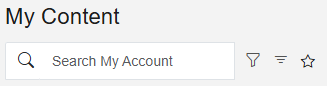
- In Gallery View, click the star icon next to the sort and filter tools to show only your favorited items.
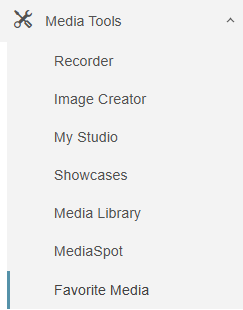
- Open the Media Tools menu on the left side and click Favorite Media to view all of them in one place.