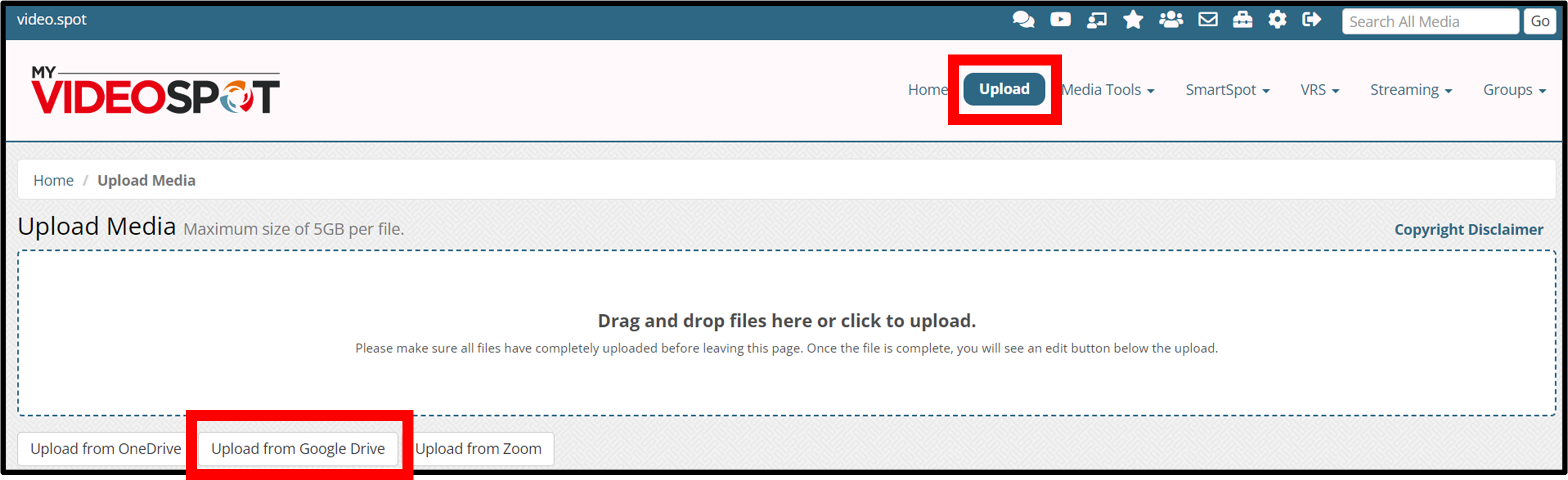
From your MyVideoSpot account, click on Upload from the main menu.
Click on Upload from Google Drive.
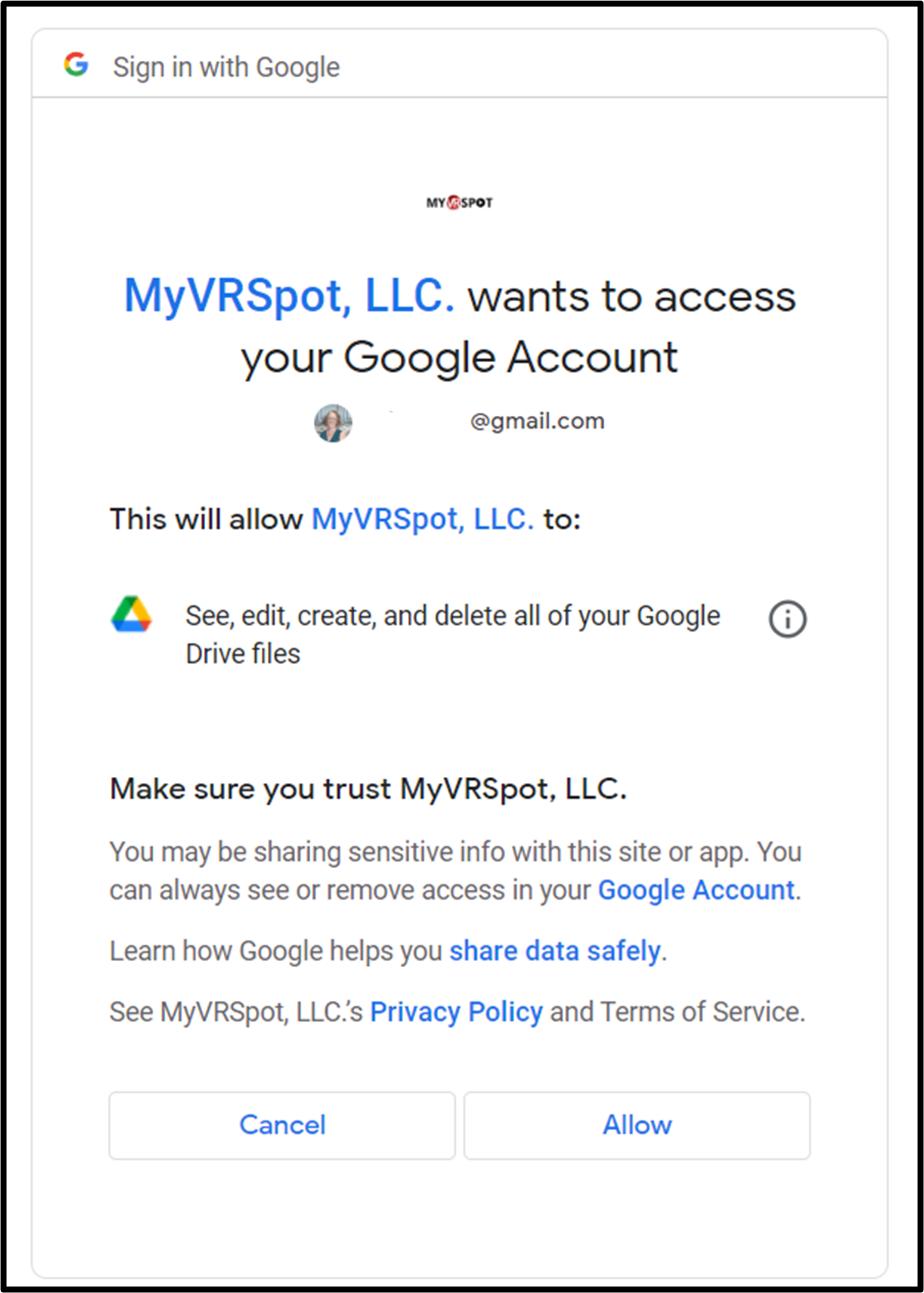
Note that you must give permission for MyVideoSpot to access your Google Drive account. When the permission screen appears, click the Allow button.
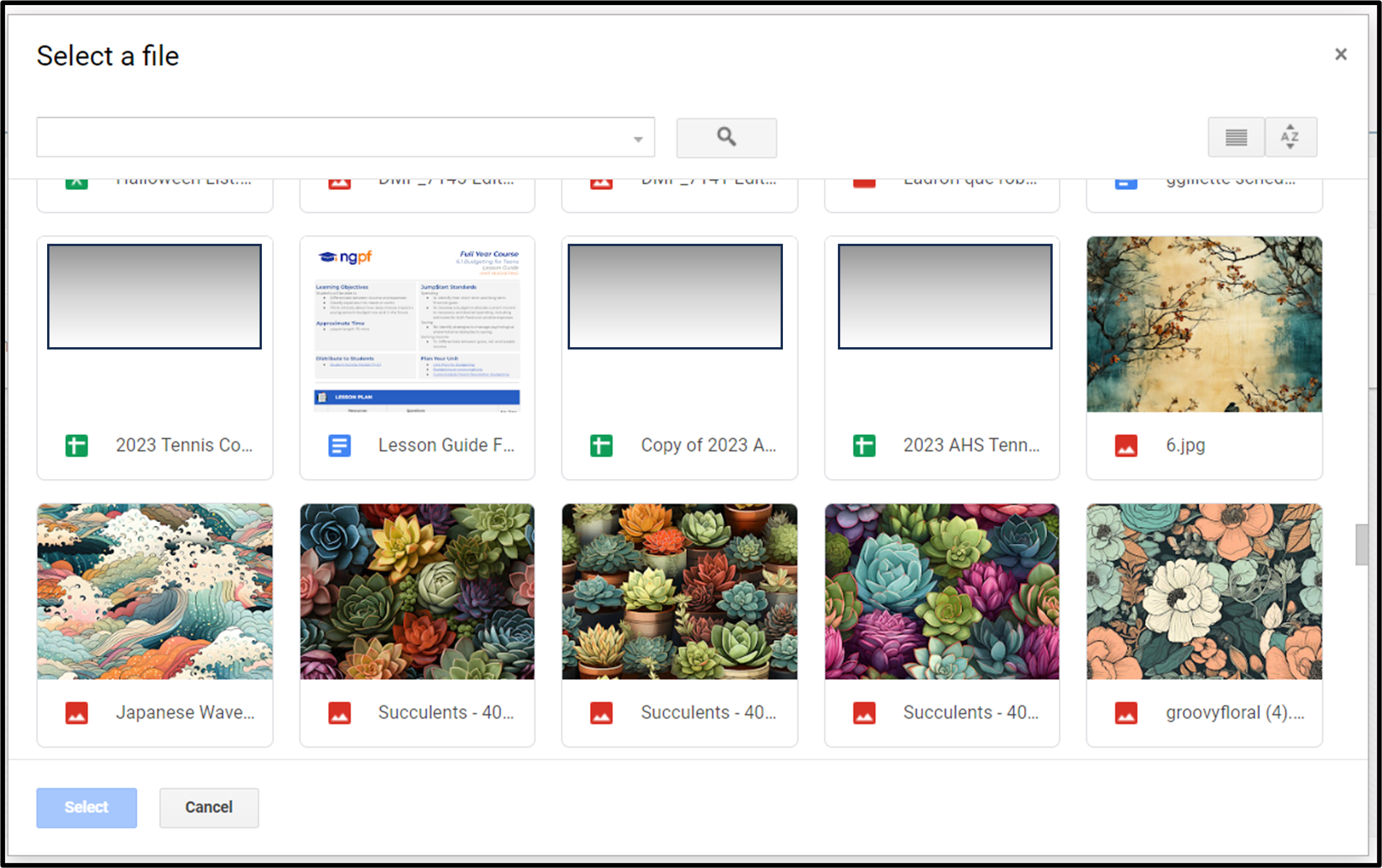
This will display all of the items that reside in your Google Drive account. Click on the file you want to copy into your MyVideoSpot account, and then click the Select button.
Uploading from Folders within Google Drive
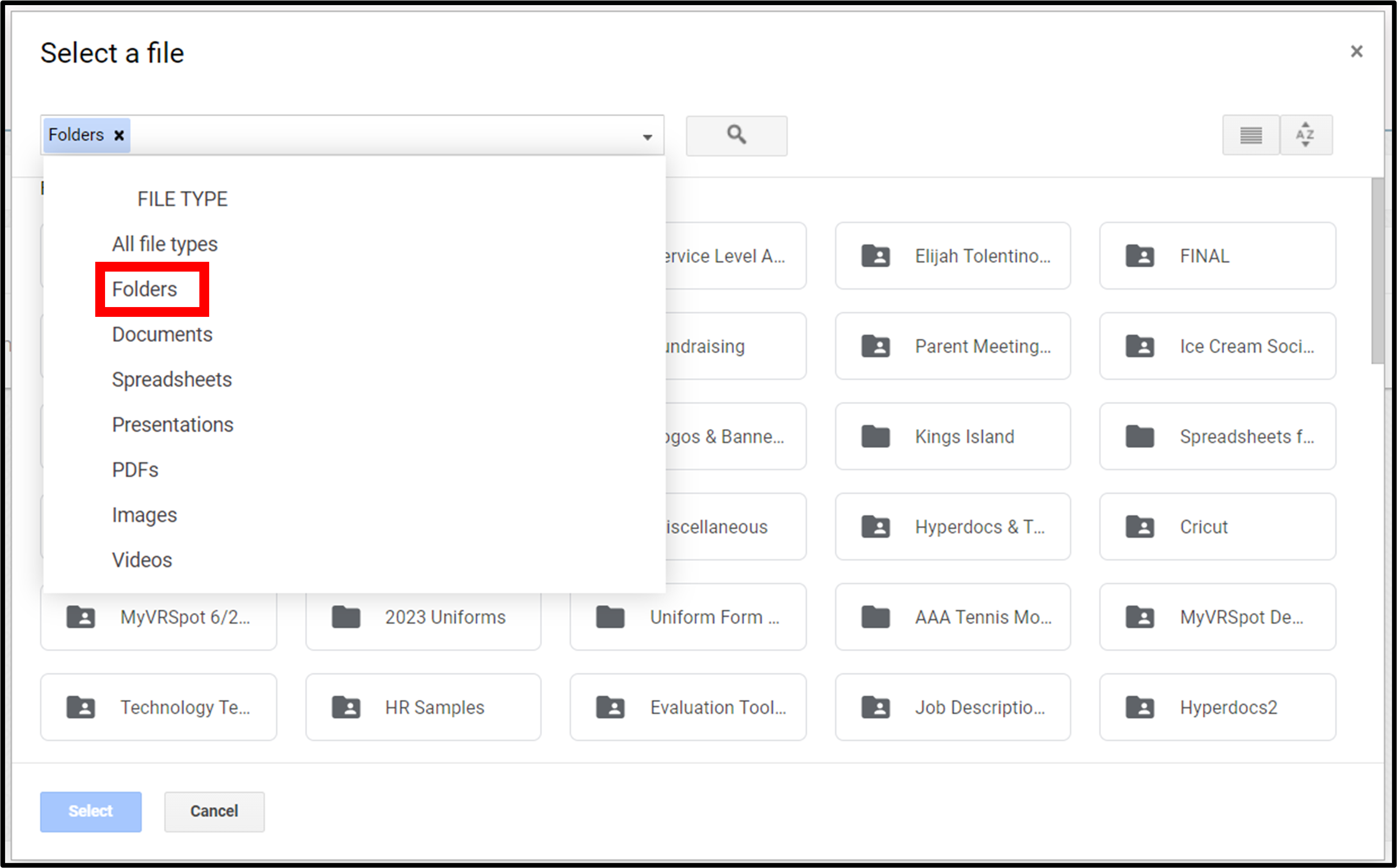
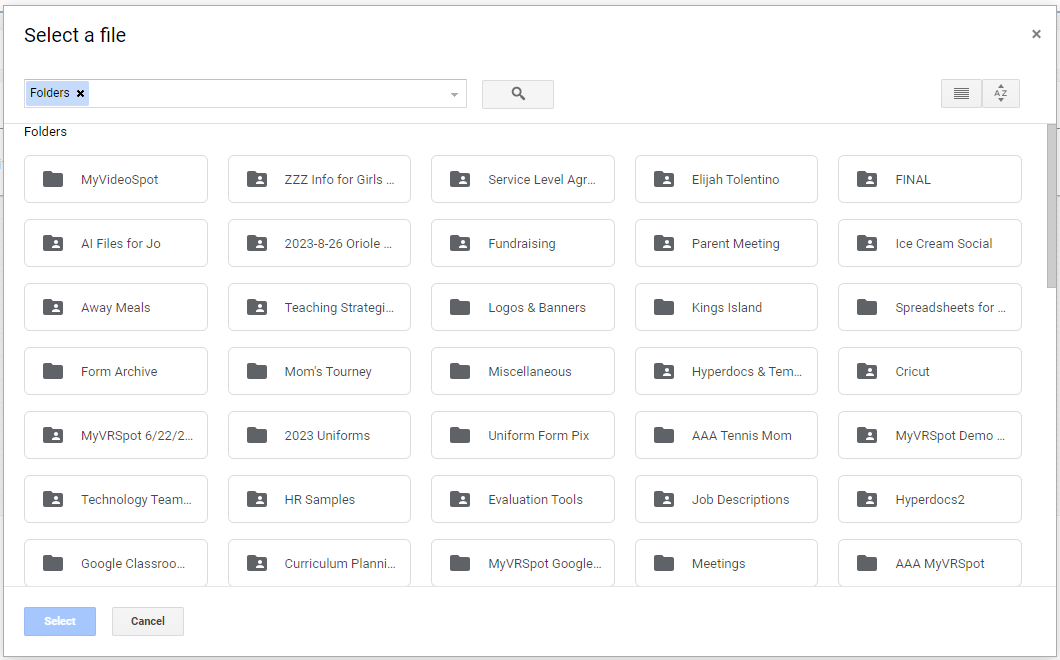
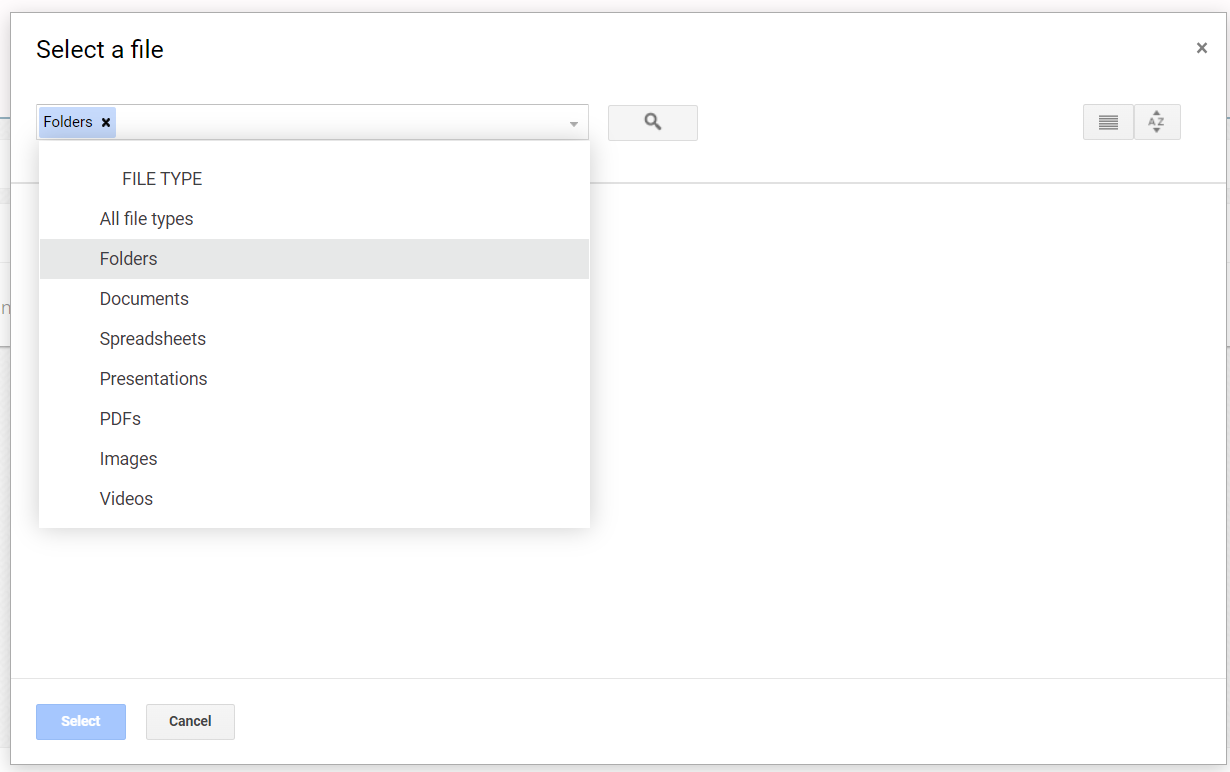
Go to the Google option on the MyVideoSpot Upload page. From the drop down menu on the Drive search bar, click Folders.
This will bring up all the folders in your Drive. Click on the folder you want to access.
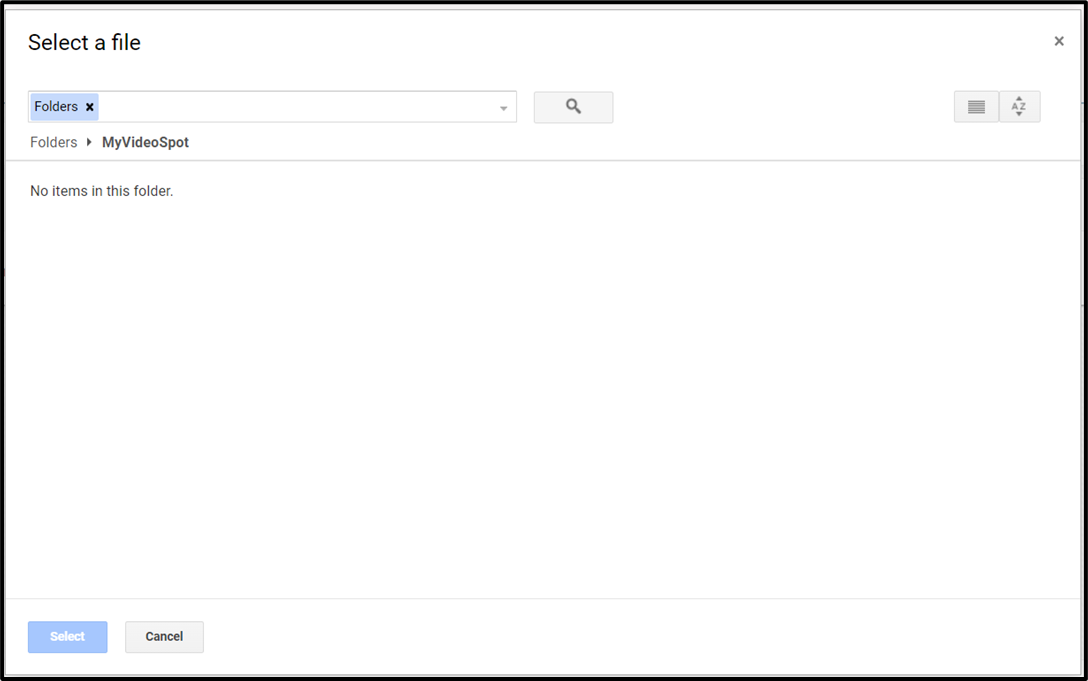
You’ll notice that it’s blank. Click on the drop down arrow on the search bar again.
Select All file types from the list of options.
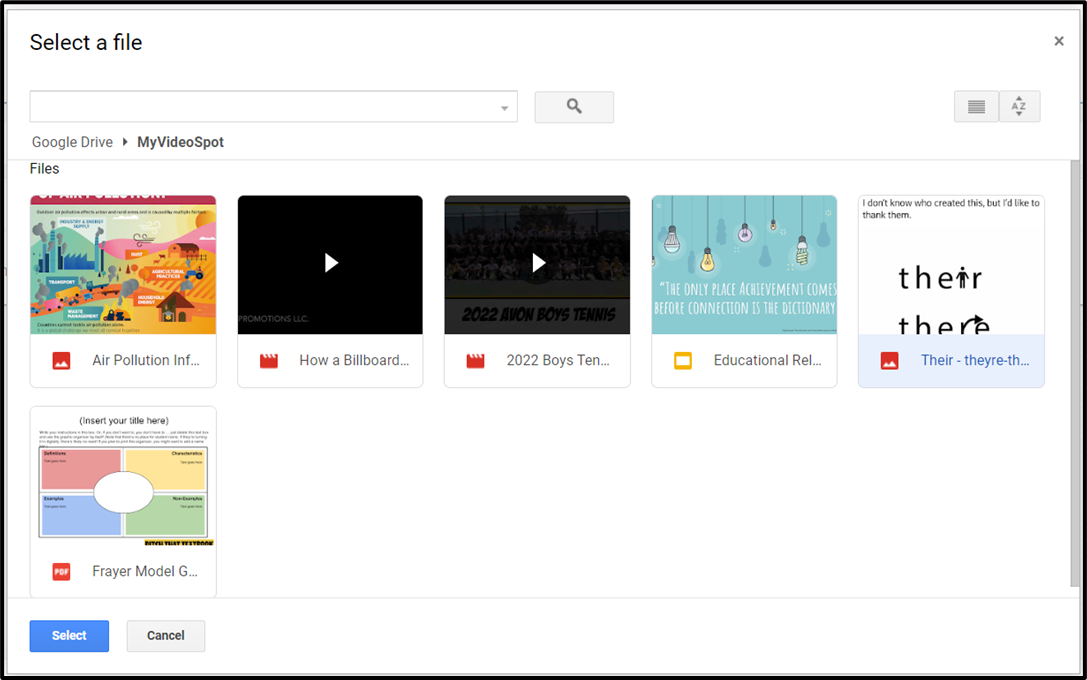
You will now be able to see all items in that folder. You can select the file you want to upload to your account now.