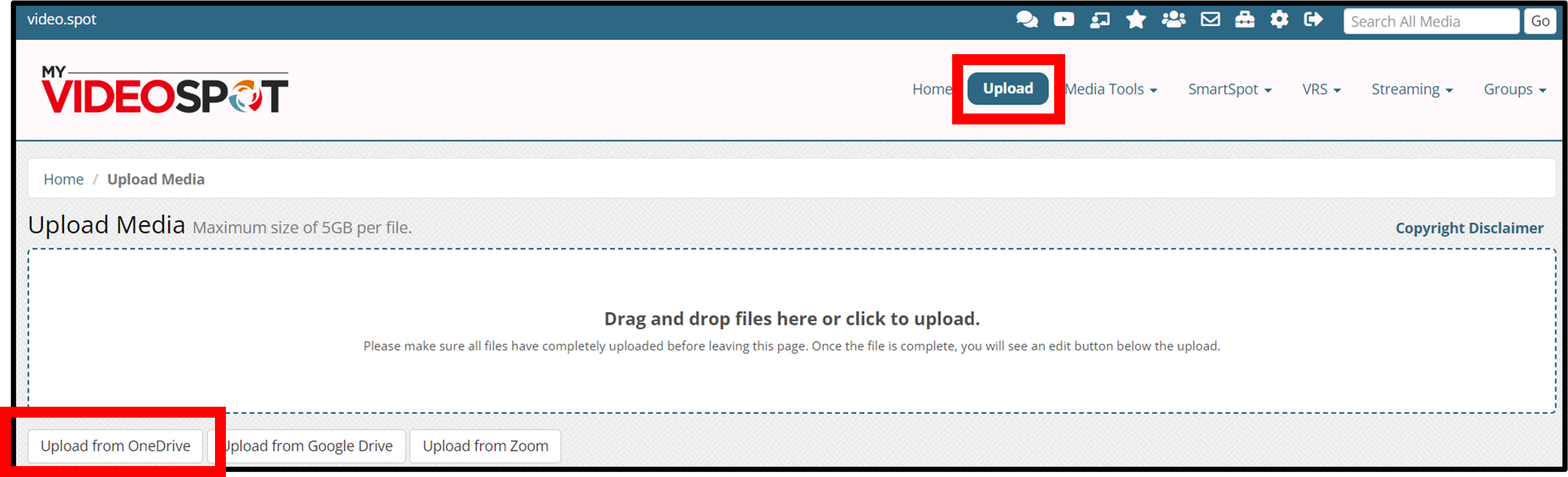
From your MyVideoSpot account, click on Upload from the main menu.
Click on Upload from OneDrive.
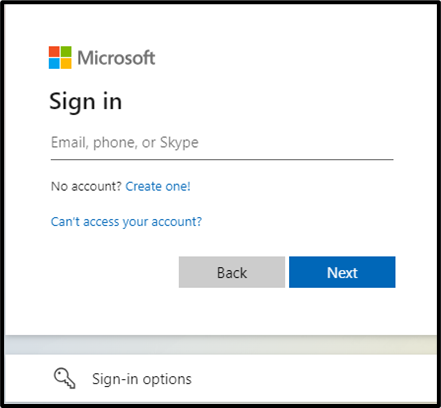
Note that you must give permission for MyVideoSpot to access your OneDrive account. When the permission screen appears, click the Yes button.
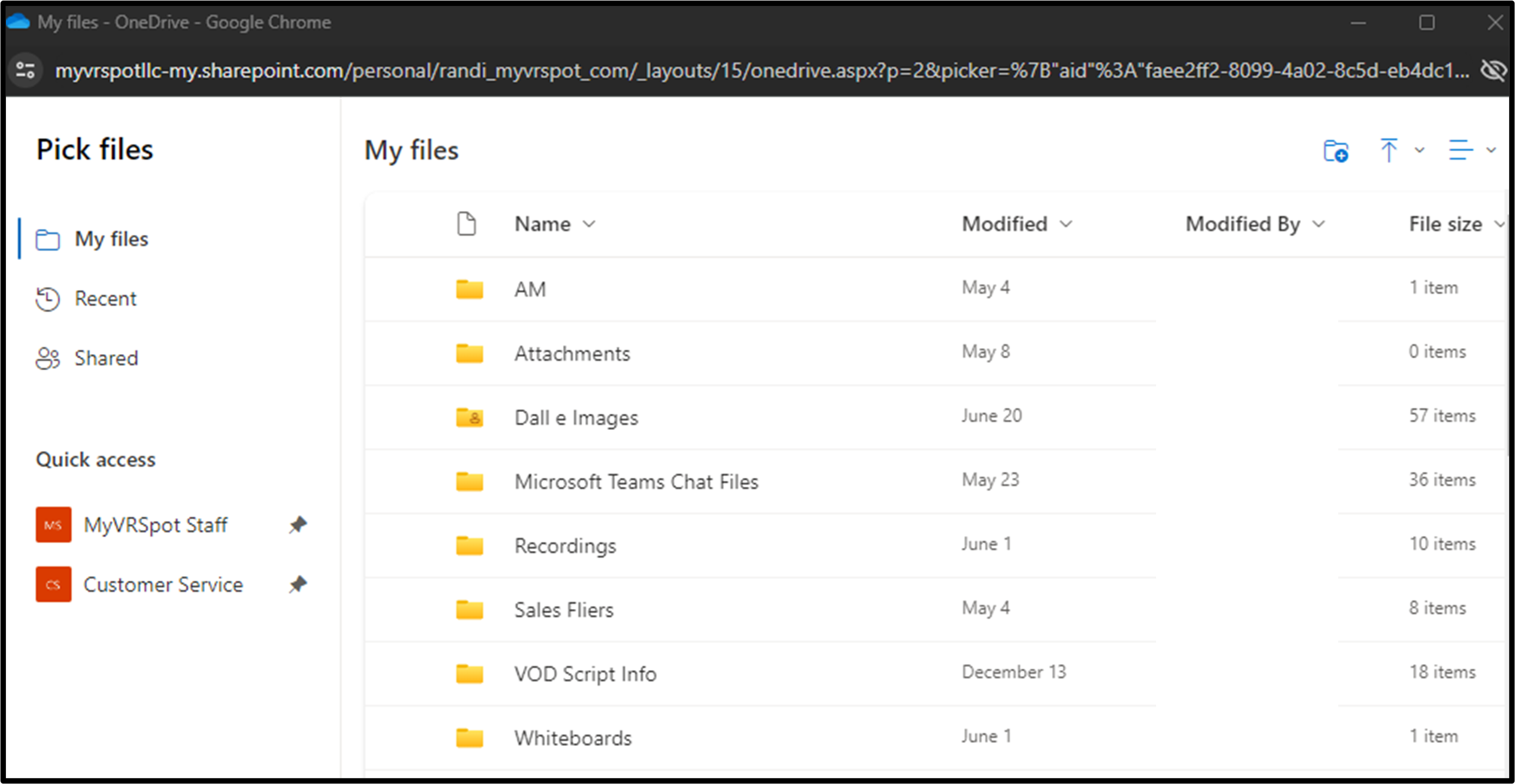
This will display all of the items that reside in your OneDrive account. Click on the file or files you want to copy into your MyVideoSpot account, and then click the Open button.
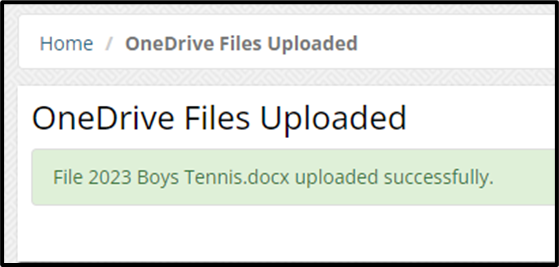
You will then see a notification that your file or files have been uploaded. The new media items will appear on your home page.